

Introduction
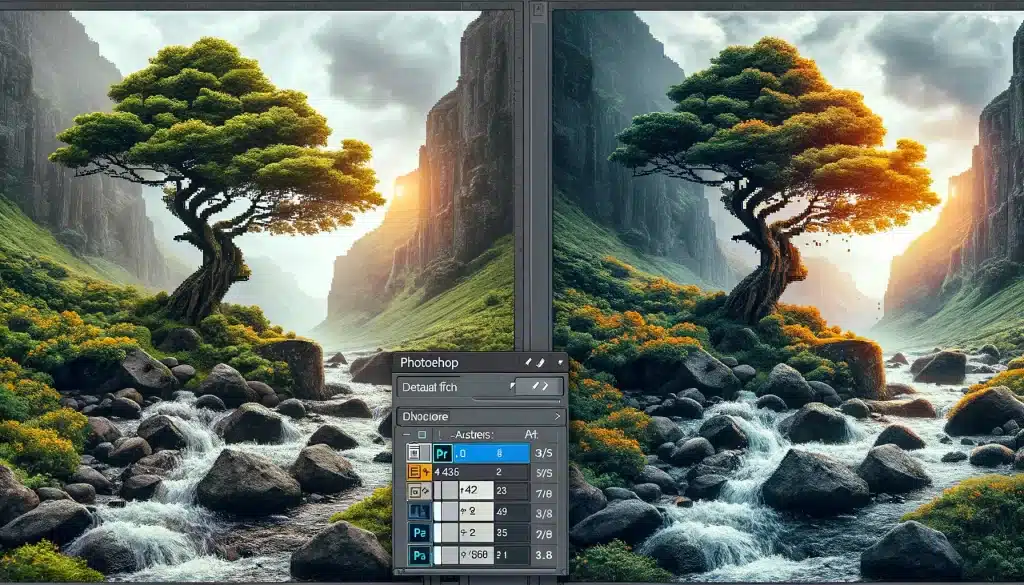
Adobe Photoshop is a powerful tool for editing and enhancing images, and one of its standout features is filters. These built-in effects allow users to add artistic touches, improve clarity, create depth, and introduce unique textures effortlessly. Whether you’re a photographer looking to sharpen an image, a designer adding creative elements, or just experimenting, Photoshop filters can transform your work dramatically.
In this guide, we’ll explore how to use Photoshop filters effectively, covering the different types of filters available and how to apply them to achieve stunning visual effects.
Understanding Photoshop Filters
What Are Filters in Photoshop?
Photoshop filters are automated effects that modify an image’s appearance. They can be used for:
- Enhancing details (sharpening, noise reduction)
- Adding textures (grain, mosaic, canvas effects)
- Creating artistic effects (oil painting, watercolor)
- Adjusting focus and depth (blur filters)
- Manipulating image distortion (twirl, ripple effects)
Benefits of Using Filters
- Save time with predefined effects.
- Enhance creativity by blending multiple filters.
- Improve images by reducing noise, sharpening, and adding texture.
- Allow quick transformations without extensive manual editing.
Types of Photoshop Filters
Photoshop offers various filters categorized into specific groups:
- Artistic Filters – Convert images into paintings or sketches.
- Blur Filters – Create depth by softening sharp areas.
- Distort Filters – Warp and reshape images.
- Noise Filters – Add grain or remove unwanted noise.
- Render Filters – Generate effects like lighting and clouds.
- Stylize Filters – Create unique visual enhancements.
- Texture Filters – Add surface details for realistic effects.
How to Apply Filters in Photoshop
Applying filters is simple. Follow these steps:
- Open your image in Photoshop.
- Select the layer you want to apply the filter to.
- Go to Filter > Filter Gallery.
- Choose a filter category and adjust its settings.
- Click OK to apply the effect.
💡 Tip: Convert your layer to a Smart Object before applying filters to make them non-destructive.
Using the Filter Gallery
The Filter Gallery provides a preview window to see effects before applying them. It allows users to:
- Test multiple filters at once.
- Adjust opacity and intensity.
- Stack and combine different effects.
📌 Shortcut: Access it via Filter > Filter Gallery.
Artistic Filters: Transform Your Photos into Paintings
- Oil Paint Filter – Creates an oil painting effect.
- Watercolor Filter – Mimics watercolor painting.
- Cutout Filter – Turns an image into a posterized artwork.
🖌 Best for: Digital artists, graphic designers.
Blur Filters: Creating Depth and Focus
- Gaussian Blur – Softens images smoothly.
- Motion Blur – Adds a streaking effect, simulating motion.
- Lens Blur – Creates realistic depth-of-field effects.
📷 Best for: Photographers, retouchers.
Distort Filters: Adding Unique Effects
- Twirl – Spins part of an image into a swirl.
- Spherize – Creates a bubble-like distortion.
- Ripple – Adds a wavy water effect.
🔄 Best for: Abstract and surreal designs.
Noise Filters: Enhancing Textures and Adding Grain
- Add Noise – Introduces a grainy texture.
- Dust & Scratches – Helps remove imperfections.
🎞 Best for: Vintage effects, film emulation.
Render Filters: Creating Light and Shadow Effects
- Lighting Effects – Simulates realistic lighting.
- Clouds Filter – Generates cloud-like textures.
💡 Best for: Creating depth and atmosphere.
Stylize Filters: Adding Dramatic Effects
- Emboss – Gives a 3D effect.
- Glowing Edges – Creates neon-like outlines.
🔥 Best for: High-contrast, edgy designs.
Combining Multiple Filters for Unique Effects
- Stack filters in layers for complex effects.
- Use blending modes to mix filter results.
- Adjust opacity and mask out areas for subtle enhancements.
🎨 Pro Tip: Use Smart Filters to edit applied effects later.
Best Practices for Using Photoshop Filters
✔ Use filters sparingly to avoid an over-processed look.
✔ Work on a duplicate layer for easy reversibility.
✔ Use Smart Objects to apply filters non-destructively.
✔ Experiment with combinations to create unique effects.
Common Mistakes to Avoid
❌ Overusing filters, making images look artificial.
❌ Applying filters destructively (always use layers!).
❌ Ignoring blending modes for seamless effects.
FAQs
1. Can I apply multiple filters at once?
Yes! You can layer multiple filters using the Filter Gallery or apply them individually on different layers.
2. How do I remove a filter after applying it?
If you use Smart Filters, you can toggle them off or delete them. Otherwise, use Undo (Ctrl+Z) or revert to the original layer.
3. What is the best filter for sharpening images?
The Unsharp Mask and Smart Sharpen filters work best for detail enhancement without adding noise.
4. Can I create custom Photoshop filters?
Yes! You can combine multiple filters, adjust settings, and save them as a Photoshop Action for reuse.
5. Why does my image look pixelated after using a filter?
Some filters increase contrast or modify pixels drastically. Use Smart Objects and work on high-resolution images to avoid pixelation.