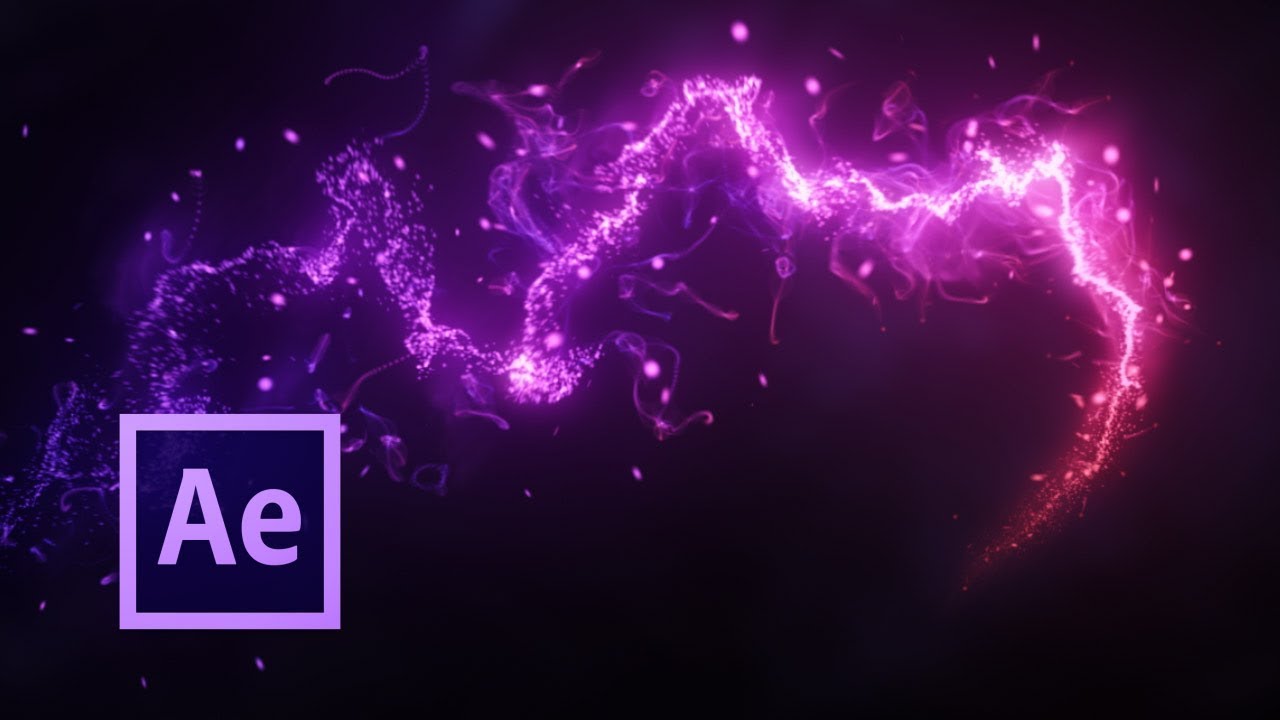
Adobe After Effects is a powerful tool for motion graphics and visual effects, and one of its most exciting features is the ability to create particle effects. Whether you want to simulate fire, smoke, snow, or abstract effects, mastering particle systems can take your projects to the next level. In this step-by-step guide, we’ll explore how to work with particles in After Effects, covering built-in effects, third-party plugins, and advanced techniques.
Step 1: Understanding Particle Systems in After Effects
Particle systems are a collection of small elements (particles) that move and interact dynamically over time. These particles can be manipulated to create stunning effects such as:
- Fire and smoke
- Rain and snow
- Explosions
- Light streaks
- Abstract motion graphics
After Effects offers built-in particle effects like CC Particle World and CC Particle Systems II, but you can also use third-party plugins like Trapcode Particular for more control.
Step 2: Setting Up Your Composition
- Open After Effects and create a new project.
- Click Composition > New Composition and set your preferred resolution and frame rate (e.g., 1920×1080, 30fps).
- Add a new Solid Layer by selecting Layer > New > Solid, which will act as the particle emitter.
Step 3: Applying a Particle Effect
Using CC Particle World
- Select the solid layer and go to Effects > Simulation > CC Particle World.
- You’ll see a particle emitter in the preview window. Adjust its position by tweaking the Producer settings.
- Modify Particle Type to control the shape and appearance of the particles (e.g., sphere, faded sphere, star).
- Adjust the Physics settings to change movement behavior:
- Velocity: Controls particle speed
- Gravity: Adds a falling effect
- Resistance: Affects how quickly particles slow down
Using CC Particle Systems II
This effect offers simpler controls and is great for quick particle animations:
- Apply CC Particle Systems II from the Effects > Simulation menu.
- Adjust the Birth Rate and Longevity to control particle density and duration.
- Customize colors using the Birth Color and Death Color settings.
Step 4: Enhancing Particles with Customization
1. Changing Particle Colors
- Use the Birth and Death Color settings to create dynamic color transitions.
- Add Glow from Effects > Stylize > Glow for a vibrant effect.
2. Adding Motion Blur
- Enable Motion Blur in the composition settings to make particles look smoother.
3. Using Layer Emitters
- Instead of a solid layer, you can use a text layer or shape layer as an emitter by linking the position of the particle effect to another layer.
Step 5: Using Trapcode Particular for Advanced Effects
For more complex particle animations, the Trapcode Particular plugin by Red Giant provides:
- Custom particle shapes
- 3D depth
- Physics-based turbulence
- Advanced lighting and shading
How to Use Trapcode Particular
- Apply Trapcode Particular from the Effects > Red Giant menu.
- Set the Emitter Type (Point, Box, Layer, etc.).
- Adjust the Particle Type and choose custom textures.
- Fine-tune Physics settings for realistic motion.
Step 6: Rendering Your Particle Animation
Once your particles are set up, follow these steps to export your animation:
- Click Composition > Add to Render Queue.
- Choose Best Settings for high-quality output.
- Select a format like H.264 or QuickTime.
- Click Render to export your animation.
FAQs
1. Can I create realistic fire using After Effects particles?
Yes! You can create fire using CC Particle World with high-opacity, orange-red particles, and additional glow effects. For a more advanced look, use Trapcode Particular.
2. How do I make particles follow a path?
Use the Emitter Position keyframes or add an expression linking the emitter’s position to a motion path.
3. What is the best third-party plugin for particles?
Trapcode Particular is the industry standard, but other great options include Stardust and Boris FX Particle Illusion.
4. How do I add turbulence to my particles?
In CC Particle World, adjust the Turbulence Field settings. In Trapcode Particular, use the Turbulence option under the Physics settings.
5. Can I use text or images as particles?
Yes! In Trapcode Particular, you can set custom particles using images, text layers, or pre-composed animations.
6. Why are my particles disappearing too quickly?
Increase the Longevity setting in CC Particle World or Life in Trapcode Particular to extend particle lifespan.