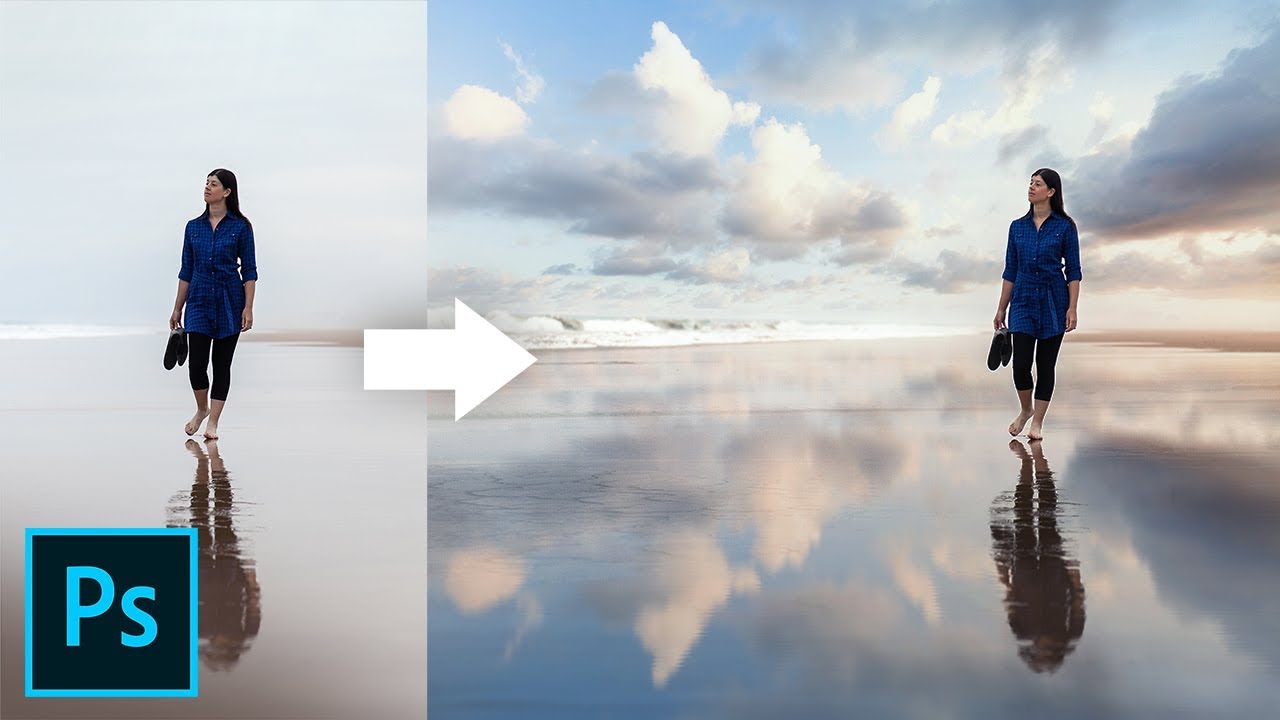
Reflections add depth, realism, and a professional touch to digital artwork. Whether designing product mockups, water reflections, or mirror effects, Adobe Photoshop offers powerful tools to create stunning reflections. In this guide, we’ll cover various techniques to make reflections look natural and visually appealing.
Why Are Reflections Important in Photoshop?
Reflections enhance the realism of images, making them more immersive and engaging. Whether for advertising, digital art, or web design, reflections can:
- Add depth and dimension to objects
- Improve product presentations in eCommerce
- Create dynamic water effects
- Enhance mirror-based compositions
Now, let’s explore the steps to create realistic reflections in Photoshop.
Step-by-Step Guide to Creating Realistic Reflections
1. Duplicating the Object for Reflection
- Open your image in Photoshop.
- Select the object or text you want to reflect using the Lasso Tool or Quick Selection Tool.
- Press Ctrl + J (Cmd + J on Mac) to duplicate the selected object onto a new layer.
2. Flipping the Object Vertically
- With the duplicated layer selected, go to Edit > Transform > Flip Vertical.
- Move the flipped object downward to align it as a reflection.
3. Adjusting Perspective for a Realistic Look
- Select Edit > Transform > Perspective.
- Drag the bottom corners outward slightly to simulate a realistic perspective.
4. Applying a Gradient Mask for a Natural Fade
- Add a Layer Mask to the reflection layer.
- Select the Gradient Tool (G) and choose a black-to-transparent gradient.
- Drag the gradient over the reflection to fade it gradually.
5. Reducing Opacity and Adding Blur
- Lower the reflection layer’s opacity to 30-50% for a natural look.
- Apply a slight blur via Filter > Blur > Gaussian Blur to simulate realistic reflection softness.
6. Adding Surface Distortion (For Water Reflections)
- Create a new layer above the reflection.
- Use the Filter > Distort > Ripple or Wave effect.
- Adjust the settings to mimic water movement.
- Apply a Displacement Map (created from a grayscale version of your image) for added realism.
Tips for Enhancing Reflections in Photoshop
- Use Layer Styles: Applying gradient overlays or shadow effects can enhance depth.
- Experiment with Blending Modes: Modes like Overlay or Soft Light can improve realism.
- Consider Light Source & Shadows: Ensure your reflection aligns with the image’s lighting conditions.
- Use Smart Objects: This allows for non-destructive editing, making it easier to tweak reflections later.
FAQs
1. Can I create reflections for text in Photoshop?
Yes! Convert the text to a smart object, duplicate it, flip it, and use the gradient mask technique to fade it.
2. How do I make a reflection look more realistic?
Adjust the opacity, add a blur effect, and use gradient masks to create a natural fade. If reflecting on water, use ripple or displacement effects.
3. What’s the best way to reflect an object on a glass surface?
Use lower opacity, soft shadows, and slight distortion to mimic glass reflections accurately.
4. Can I make a reflection look like it’s on a wet floor?
Yes! Add a displacement map with slight distortion to simulate water puddles and reflections on a wet surface.
5. What Photoshop tools are best for reflections?
The Transform Tool, Layer Masks, Gradient Tool, Gaussian Blur, and Displacement Maps are essential for creating reflections.