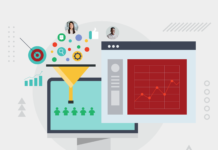
1. Understanding Facebook Ad Conversions
A Facebook ad conversion occurs when a user takes a desired action after clicking or viewing your ad. These actions can include:
- Making a purchase
- Signing up for a newsletter
- Downloading an eBook
- Submitting a lead form
Tracking these conversions helps advertisers determine the return on investment (ROI) for their ad spend.
2. Why Conversion Tracking is Important
Tracking conversions is essential because:
- It measures the effectiveness of your Facebook ads.
- It helps in optimizing campaigns for better performance.
- It provides insights into customer behavior.
- It allows budget allocation to high-performing ads.
Without proper tracking, businesses could be wasting money on ineffective ads.
3. Setting Up Facebook Pixel for Conversion Tracking
The Facebook Pixel is a small piece of code placed on your website to track user interactions. Here’s how to set it up:
Step 1: Create a Facebook Pixel
- Go to Meta Business Suite > Events Manager.
- Click Connect Data Sources > Web.
- Select Facebook Pixel and follow the setup instructions.
Step 2: Install the Pixel on Your Website
- Use the partner integration if you’re using platforms like Shopify or WordPress.
- Manually add the pixel code to your website’s
<head>section.
Step 3: Verify and Test Your Pixel
Use the Meta Pixel Helper Chrome extension to check if the Pixel is working properly.
4. Using Facebook Events to Track Conversions
Facebook provides Standard Events and Custom Events to track user actions.
Standard Events
These are predefined actions such as:
- Purchase: When a user completes a purchase.
- Lead: When a user fills out a form.
- Add to Cart: When a user adds an item to the cart.
Custom Events
You can create custom events if standard events don’t fit your needs. For example, tracking users who watched 75% of a video.
5. How to Set Up Custom Conversions
Custom conversions allow you to track specific actions that don’t fit within Facebook’s standard events.
Steps to Set Up Custom Conversions:
- Go to Meta Business Suite > Events Manager.
- Click Custom Conversions.
- Select Create Custom Conversion.
- Define the conversion by choosing a URL or event.
- Set up rules (e.g., URL contains “thank-you”).
- Name and save your custom conversion.
6. Using Facebook Conversion API (CAPI)
Facebook’s Conversion API (CAPI) helps track conversions more accurately by sending data from your server instead of the browser.
Benefits of Using CAPI
- Improves tracking accuracy, especially with iOS 14 privacy changes.
- Bypasses ad blockers that might prevent Pixel tracking.
- Enhances data security by sending data directly from your server.
CAPI works best when combined with the Facebook Pixel.
7. How to Track Offline Conversions
If your business receives leads or sales offline (e.g., phone calls, in-store purchases), you can track these using Offline Conversions.
Steps to Track Offline Conversions
- Go to Meta Business Suite > Offline Event Sets.
- Click Create Offline Event Set.
- Upload your customer data (e.g., phone numbers, emails).
- Match offline data with your ad performance.
8. Using Google Analytics for Facebook Ad Tracking
Google Analytics can help verify Facebook ad conversions.
Steps to Track Facebook Ads in Google Analytics
- Set up UTM parameters on Facebook ad links.
- Track conversions in Google Analytics under Acquisition > Campaigns.
This provides additional insights beyond Facebook’s reporting.
9. UTM Parameters for Facebook Ads
UTM parameters are tags added to URLs to track traffic sources.
Example of a UTM Tag for Facebook Ads
rubyCopyEdithttps://yourwebsite.com/?utm_source=facebook&utm_medium=ad&utm_campaign=spring_sale
Use Google’s Campaign URL Builder to generate UTM links.
10. Analyzing Conversion Data in Facebook Ads Manager
To analyze conversions:
- Go to Facebook Ads Manager.
- Click Customize Columns.
- Select relevant metrics like:
- Conversion Rate
- Cost per Conversion
- ROAS (Return on Ad Spend)
This helps in making data-driven decisions.
11. Optimizing Facebook Ads Based on Conversion Data
Once you have conversion data, optimize your ads by:
- A/B Testing different creatives and audiences.
- Retargeting users who engaged but didn’t convert.
- Adjusting bidding strategies for better ROI.
12. Common Mistakes in Facebook Conversion Tracking
- Not verifying the Pixel after installation.
- Tracking too many events, leading to data overload.
- Ignoring iOS 14 updates, which impact tracking accuracy.
13. Best Practices for Accurate Conversion Tracking
- Regularly test your Facebook Pixel.
- Use both Pixel and CAPI for better tracking.
- Segment audiences for better ad performance.
- Exclude existing customers from campaigns to avoid wasted ad spend.
Final Thoughts
Tracking conversions from Facebook Ads is crucial for optimizing your campaigns and maximizing ROI. By setting up the Facebook Pixel, using Custom Conversions, implementing the Conversion API, and analyzing data in Facebook Ads Manager, you can make data-driven decisions to improve your ad performance.
FAQs
1. How do I check if my Facebook Pixel is working?
Use the Meta Pixel Helper Chrome extension or check the Events Manager dashboard for received data.
2. Why is my Facebook conversion tracking not accurate?
It could be due to:
- Ad blockers
- iOS 14 privacy settings
- Incorrect Pixel installation
3. Can I track conversions without a website?
Yes, you can track offline conversions using Facebook’s Offline Events feature.
4. How long does Facebook take to track conversions?
Facebook typically reports conversions within a few hours, but it can take up to 24 hours.
5. Should I use both Facebook Pixel and Conversion API?
Yes, using both ensures better tracking accuracy, especially with recent privacy updates.