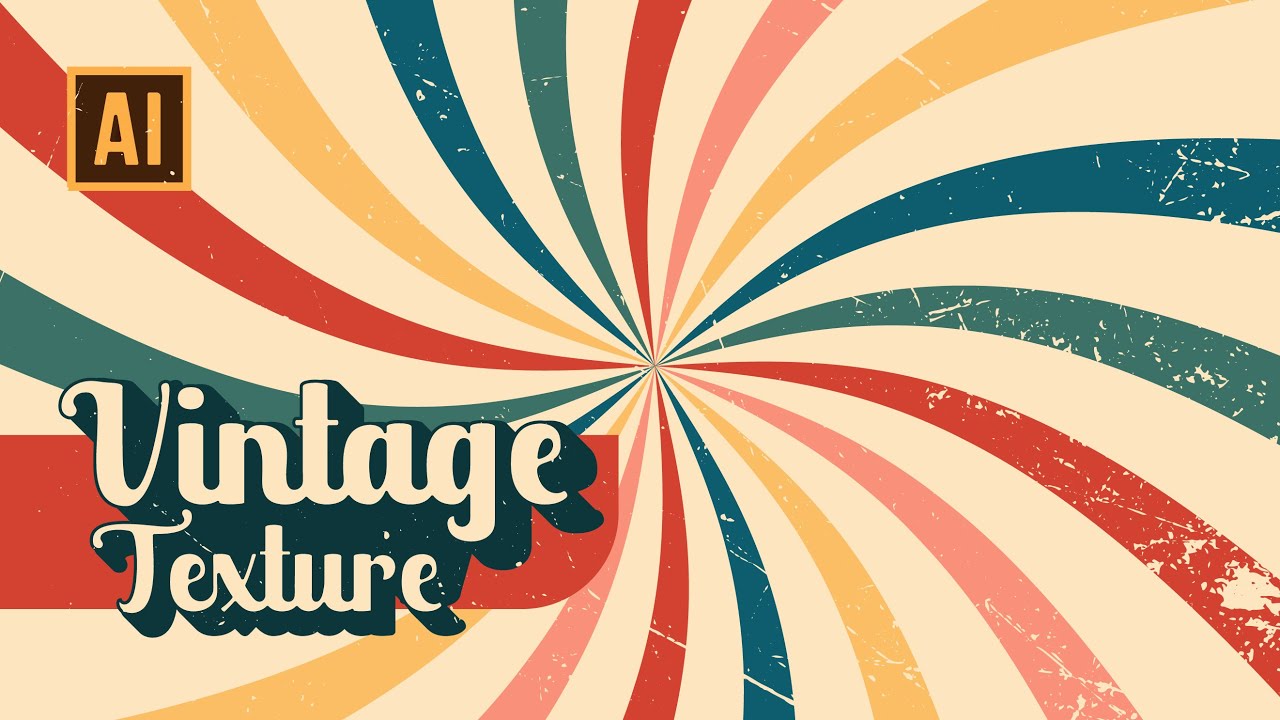
Creating retro or vintage styles in Adobe Illustrator is a great way to add nostalgic charm to your designs. Whether you’re working on posters, logos, typography, or illustrations, Illustrator offers powerful tools to replicate the aged and distressed aesthetics of past eras.
This guide will walk you through step-by-step techniques to create vintage designs, including using textures, color palettes, typography, and effects. Plus, we’ve included five frequently asked questions (FAQs) to help you refine your retro design skills.
Step-by-Step Guide to Creating Retro or Vintage Styles in Illustrator
1. Choose the Right Color Palette
Retro and vintage designs often feature muted, earthy tones with a slightly faded look.
✅ Use warm browns, mustard yellows, soft blues, and desaturated reds.
✅ Use the Adobe Color tool to explore vintage color palettes.
👉 How to apply it in Illustrator:
- Open the Swatches panel (
Window→Swatches). - Click the Swatch Libraries Menu →
Vintage Colors. - Apply these colors to your shapes and typography.
2. Use Vintage Typography
Typography plays a crucial role in achieving a classic retro aesthetic.
✅ Use bold serif fonts, hand-drawn scripts, or classic sans-serifs like:
- Bebas Neue (1950s aesthetic)
- Futura (Bauhaus style)
- Pacifico (Hand-lettered vintage)
👉 How to apply vintage fonts in Illustrator:
- Go to Type Tool (
T) and choose a retro font. - Use
Effect → Warpto curve or distort your text. - Apply
Texture or Roughen effectsfor a distressed look.
3. Add Textures and Grain Effects
To replicate the aged, worn-out look, apply grainy textures and distressed overlays.
👉 How to do it in Illustrator:
- Create a new layer for texture.
- Go to
Effect → Texture → Grainand adjust the intensity. - Use Opacity masks (
Window→Transparency) to blend textures into your design.
✅ Use paper, grunge, or halftone textures to achieve an authentic retro feel.
4. Use Halftone and Distressed Effects
Halftones mimic the printing techniques used in old magazines and posters.
👉 How to create halftones in Illustrator:
- Select your object.
- Go to
Effect→Pixelate→Color Halftone. - Adjust the settings for a retro screen-printed look.
✅ Combine halftone dots with texture layers to create a vintage print effect.
5. Apply Retro-Inspired Patterns
Vintage designs often use repetitive patterns like florals, polka dots, or stripes.
👉 How to create a seamless pattern in Illustrator:
- Design a small repeating unit.
- Select it and go to
Object → Pattern → Make. - Adjust spacing and tile settings for a balanced look.
✅ Use hand-drawn or geometric patterns for a truly retro vibe.
6. Incorporate Layer Styles and Blending Modes
To enhance the vintage aesthetic, adjust blending modes and layer styles.
👉 How to use blending modes in Illustrator:
- Select an object and go to
Window → Transparency. - Change the blending mode to Multiply, Overlay, or Soft Light.
- Adjust the opacity for a more faded appearance.
✅ Experiment with drop shadows, noise, and soft glows for a nostalgic touch.
7. Distress and Roughen Edges
Adding rough edges makes your design look handcrafted and aged.
👉 How to roughen edges in Illustrator:
- Select your shape or text.
- Go to
Effect → Distort & Transform → Roughen. - Adjust the Size and Detail sliders to create irregular, vintage edges.
✅ Combine this with grain textures to complete the aged effect.
Final Thoughts
Creating retro or vintage styles in Illustrator is all about textures, colors, and typography. By using halftones, grain effects, and rough edges, you can bring an authentic old-school feel to your designs.
Frequently Asked Questions (FAQs)
1. How can I create a vintage poster in Illustrator?
To create a vintage poster, follow these steps:
- Choose a muted color palette.
- Use retro typography with textured effects.
- Add grungy textures and halftone effects for an old-printed look.
- Apply distressed edges and overlays for a worn-out feel.
2. What are the best free retro fonts for Illustrator?
Some of the best free retro fonts include:
- Pacifico (Handwritten vintage)
- Bebas Neue (Classic 1950s)
- Futura PT (Art Deco Style)
- ChunkFive (Bold vintage slab-serif)
You can download them from Google Fonts or DaFont.
3. How do I make a distressed logo in Illustrator?
To create a distressed vintage logo:
- Design your logo using retro fonts and shapes.
- Apply Roughen and Grain effects.
- Overlay grunge textures and use Opacity Masks to blend them.
- Use Multiply blending mode to add a faded look.
4. How can I add a halftone effect to my artwork?
To add a halftone effect:
- Select an object and go to
Effect → Pixelate → Color Halftone. - Adjust radius and dot size for a realistic print look.
- Experiment with opacity and blending modes.
For vector halftones, create dots manually using the Ellipse Tool and arrange them in a grid.
5. Can I use vintage Illustrator effects for social media graphics?
Yes! Vintage effects work great for Instagram, YouTube, and marketing materials.
- Use retro color palettes and typography for branding.
- Create grainy backgrounds and halftones for posts.
- Apply textured overlays to make images look old-school and unique.