Blending modes in Photoshop allow users to create visually striking effects by controlling how layers interact with each other. While basic blending modes like Multiply, Screen, and Overlay are commonly used, Photoshop’s advanced blending options offer even more flexibility and control. In this guide, we’ll explore these powerful features and show you how to use them to enhance your designs.
What Are Blending Modes in Photoshop?
Blending modes determine how a layer interacts with layers beneath it. They alter the way colors mix based on mathematical formulas, allowing for effects such as light enhancement, darkening, and color shifting.
1. Understanding Photoshop’s Blending Mode Categories
Blending modes in Photoshop are categorized based on how they manipulate color and light:
- Normal Modes
- Normal
- Dissolve
- Darken Modes (Make images darker)
- Darken
- Multiply
- Color Burn
- Linear Burn
- Darker Color
- Lighten Modes (Make images lighter)
- Lighten
- Screen
- Color Dodge
- Linear Dodge (Add)
- Lighter Color
- Contrast Modes (Increase contrast)
- Overlay
- Soft Light
- Hard Light
- Vivid Light
- Linear Light
- Pin Light
- Hard Mix
- Comparative Modes (Detect differences)
- Difference
- Exclusion
- Subtract
- Divide
- Component Modes (Manipulate color components)
- Hue
- Saturation
- Color
- Luminosity
2. How to Use Advanced Blending Options
Accessing Blending Options
- Open Photoshop and create or import an image.
- Select the layer you want to blend.
- Click on the “Blending Mode” dropdown in the Layers panel.
- Experiment with different modes to see how they affect the image.
Using the ‘Blend If’ Feature
The Blend If function allows for selective blending based on luminosity or color range:
- Double-click a layer to open Layer Style.
- Locate the Blend If section.
- Adjust sliders to control how light or dark areas of the layer interact with the background.
- Hold Alt/Option while dragging sliders for smoother blending.
3. Popular Advanced Blending Techniques
Soft Light & Overlay for Contrast Enhancement
- Overlay and Soft Light modes enhance contrast and depth.
- Ideal for retouching and dramatic lighting effects.
Multiply for Shadow Effects
- Darkens the base layer, perfect for creating realistic shadows.
Screen for Lightening Effects
- Used to brighten images or add glowing effects.
Difference for Abstract & Surreal Effects
- Creates high-contrast color inversions, useful in abstract art.
Hard Mix for High-Intensity Color Effects
- Converts colors to pure red, green, blue, cyan, magenta, yellow, black, or white.
- Used in pop art and digital illustration.
4. Advanced Blending for Photo Manipulation
Blending Multiple Images Seamlessly
- Use Gradient Masking with blending modes to merge images naturally.
- Apply Soft Light or Overlay to unify colors.
- Adjust opacity for a smooth transition.
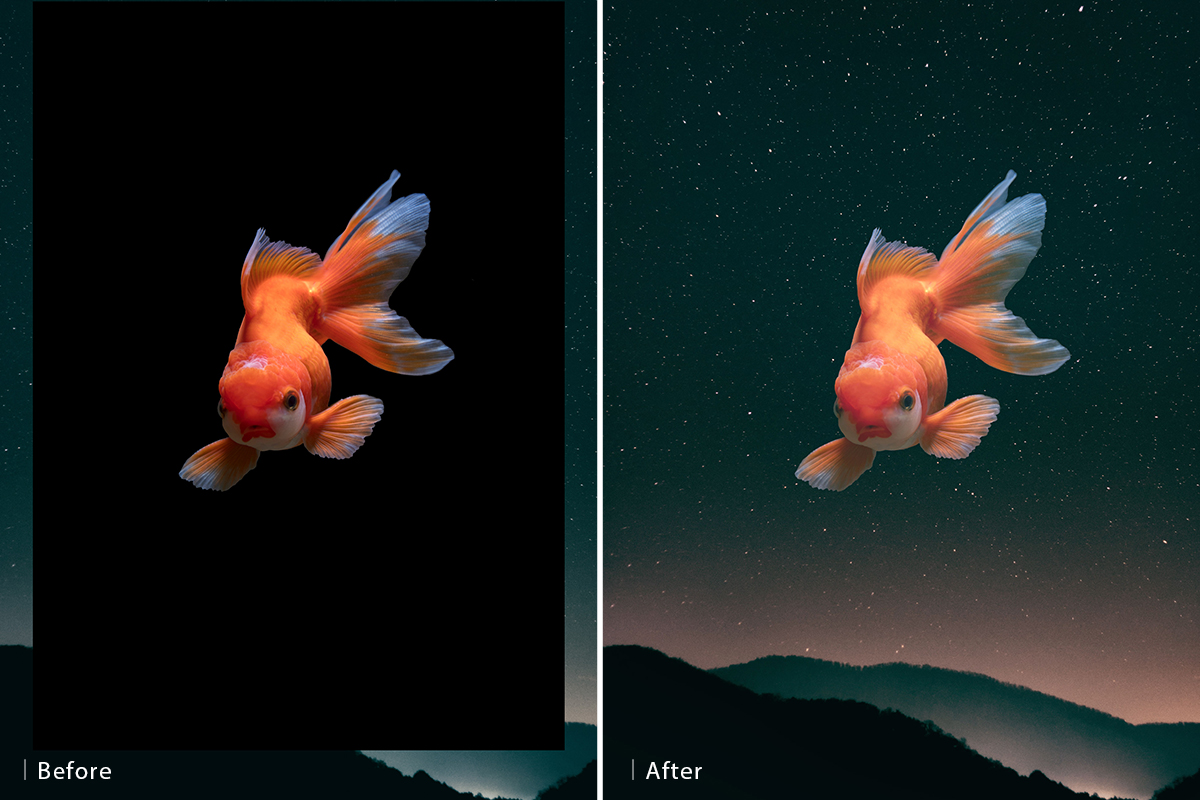
Creating Double Exposure Effects
- Place two images on separate layers.
- Set the top layer to Screen or Lighten mode.
- Use layer masks to refine the blend.
5. Tips for Mastering Blending Modes
✔ Use multiple blending modes in a single project for depth and realism.
✔ Experiment with opacity and layer masks for precise control.
✔ Use adjustment layers (Curves, Levels) for fine-tuning.
✔ Combine blend modes with layer styles (Drop Shadow, Inner Glow) for enhanced effects.
FAQs
1. What is the most commonly used blending mode in Photoshop?
The most commonly used blending modes are Multiply, Screen, Overlay, and Soft Light due to their versatility in lighting, shading, and contrast adjustments.
2. How do I reset blending modes in Photoshop?
To reset a layer’s blending mode, simply select the layer and choose Normal from the blending mode dropdown.
3. Can blending modes be used with text layers?
Yes! Blending modes work with text layers, allowing for creative typography effects such as glowing, texture overlays, and blending text into backgrounds.
4. How do I make colors pop using blending modes?
Use Overlay or Soft Light and adjust opacity. Combining these with Vibrance and Levels adjustments can enhance color intensity.
5. Do blending modes affect file size?
No, blending modes do not significantly affect file size. However, using many layers with different blending modes can increase rendering time and memory usage.